
GPX file repair can help when a recorded track contains impossible coordinates or malformed time and elevation values. This GPX file repair tool conservatively removes invalid track points and strips broken time or elevation fields from otherwise usable points. You can also remove consecutive duplicate points within a segment. It downloads a repaired .gpx and reports what changed. The original must still be well-formed XML: missing locations, truncated XML and gaps in the route are not reconstructed or guessed.
What GPX file repair changes
A GPX track is a sequence of trkpt elements grouped into track segments. Each track point needs latitude and longitude values that describe a possible position. This repair profile checks those coordinates and removes points with missing, nonnumeric or out-of-range values. Latitude must fall between -90 and 90; longitude must fall between -180 and 180.
For retained points, a malformed time or nonnumeric elevation is removed as a field rather than causing the whole point to disappear. That is a deliberate distinction: a valid location can still be useful for drawing a route even when its timing cannot be trusted. The GPX file repair tool does not invent a replacement timestamp, interpolate elevation or move the point onto a nearby road.
Repair a track and inspect the changes
- Save an untouched backup of the source. Select Choose file and open the .gpx, or paste its XML.
- Decide whether to enable Remove consecutive duplicate points. Leave it off if repeated positions may represent intentional pauses.
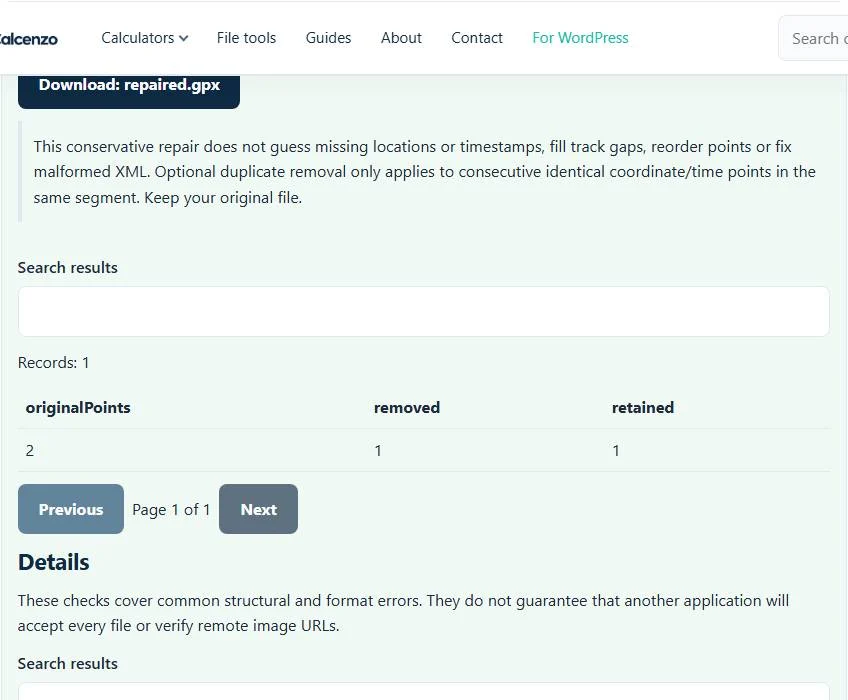
- Select Process files after changing options or pasting. The example contains one valid location with a bad time and one impossible location.
- Read the original, removed and retained point counts, together with the individual warnings.
- Download
repaired.gpxand open it in the route application you intend to use.
File selection starts processing with the current controls. If you change duplicate removal afterwards, process again before downloading. A report with fewer points is not automatically better: compare the warnings with the activity you actually recorded.
A concrete repair example
<trkseg>
<trkpt lat="37.8" lon="-122.4"><time>bad-date</time></trkpt>
<trkpt lat="999" lon="0"/>
</trkseg>
The first track point keeps its coordinates but loses the invalid time element. The second is removed because latitude 999 is impossible. The result has one retained point from two original points. It will not contain a guessed date for the first position or an estimated substitute location for the second.
A one-point result demonstrates the repair rule, but does not describe a complete journey. If all points are invalid, the GPX file repair tool stops rather than presenting an empty route as a successful repair. For your real file, inspect its start, finish and important turns after downloading, especially around any removed point.
How duplicate removal behaves
The optional duplicate check applies to consecutive points in the same segment with identical coordinates and time. It does not remove every repeated location across the whole activity. Returning to the same place later in a run is meaningful data, as are repeated coordinates with different timestamps while stationary.
Removing invalid time fields may reduce what another program can calculate about speed or elapsed time. Preserve the original for comparison, and avoid using repaired data to claim a precise performance record if timing is incomplete. A route that draws successfully can still have missing or unreliable activity measurements.
When this tool cannot recover the file
A broken XML opening or closing tag must be fixed at its source or recovered from another export before this conservative parser can proceed. Waypoint-only and route-only files do not provide the supported track-point input. Sensor extensions, missing track gaps and physically implausible but in-range GPS jumps are not comprehensively repaired.
Consult the GPX 1.1 schema documentation when inspecting element structure. If your original activity is a usable watch file, FIT to GPX conversion may provide a fresh route export. TCX to FIT instead produces an activity container; it does not restore positions lost during a GPX repair. Choose the workflow based on the data you still have.
Common GPX file repair tool errors and how to fix them
When the GPX file repair tool cannot use a file, it stops with one clear message instead of producing a half-finished download. These are the problems people run into most often, with the fix for each:
- The file does not match the expected format or has invalid structure. The XML is truncated or malformed, or the root element is not gpx. This repair does not rebuild broken XML.
- The file is empty or has no usable records for this tool. The file has no track points, or every point was invalid.
- Warnings about removed points, times or elevations Points with impossible coordinates are removed; bad times or elevations are dropped while the point is kept. Nothing is guessed.
Privacy: the GPX file repair tool runs in your browser
GPX file repair tool processing happens with JavaScript in a background worker on this page. Your file is not uploaded to a FileFix server, and the results you download are created in your browser’s memory. Activity and location files reveal where you live, train and travel, so they are worth keeping on your own device. When you finish on a shared computer, clear the selection or close the tab.
Once the track is clean, the GPX to KML converter turns it into a line you can open in Google Earth.
Sources
Questions about this tool
Can this fix a truncated GPX file?
No. The XML must be well formed before track-point cleanup can run. Recover a fresh export or repair the XML structure separately.
Will the tool estimate missing GPS locations?
No. Invalid points are removed and their locations are not guessed or interpolated.
What happens to a point with a bad timestamp?
If its coordinates are valid, the point remains but the malformed time element is removed. Downstream speed or elapsed-time calculations may then be incomplete.
Does duplicate removal delete a return visit to the same place?
No. It targets consecutive identical coordinate/time points within one segment, not every repeated coordinate across the track.
Why does a waypoint-only file fail?
This repair supports track points in trkpt elements. A waypoint-only or route-only document does not contain the supported track input.
Review the supported formats and limitations before using an output file. File processing happens in your browser.