
Convert CSV to QIF when a finance application accepts Bank-profile transaction files but your statement is available only as a spreadsheet export. Map the date, amount, payee and optional category columns, choose the source date convention, and download a plain-text QIF file. The CSV to QIF converter preserves positive and negative amount signs and shows the transactions before download. It handles a defined transaction subset, so confirm the receiving application and account type support QIF before importing a full statement.
How to convert CSV to QIF
- Choose your comma-delimited CSV or paste its text into the provided text field. Try an example loads two fictional transactions.
- Set Input date format to
iso,mdyordmyaccording to the source dates. - Enter the exact header names for date, amount, payee and category. Defaults are
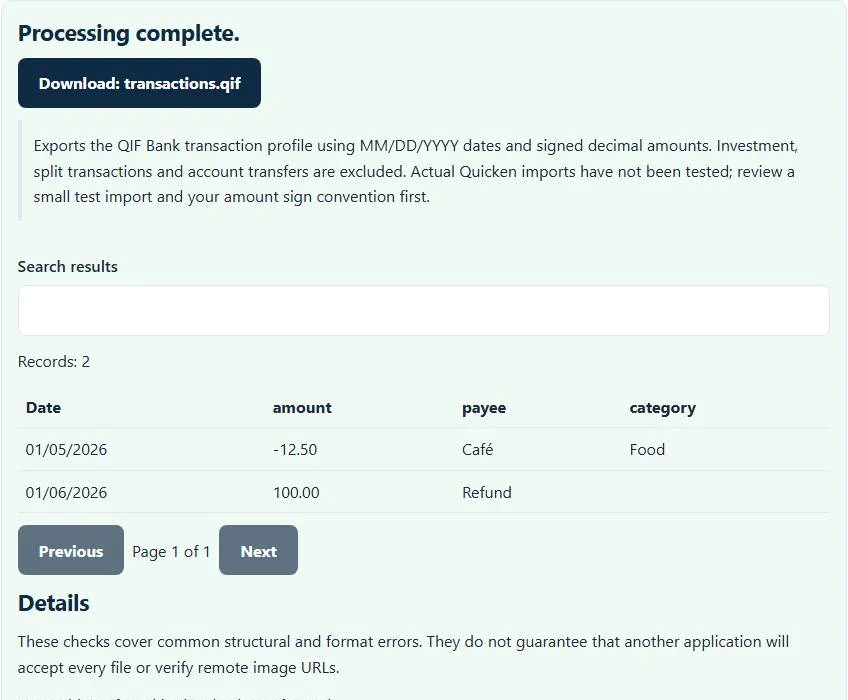
date,amount,payeeandcategory. - Select Process files, inspect the preview and use the QIF download button.
Prepare one signed amount column before conversion if the statement separates money received and money paid into debit and credit columns. This interface does not calculate that combined column for you.
The supported QIF Bank transaction profile
The output starts with !Type:Bank. Each transaction uses a date, a signed decimal amount and a payee, with a category when provided; a caret ends the record. Dates are exported as month/day/year. Amounts use two decimal places. This is a text interchange file, not an online connection to your bank or accounting software.
The CSV to QIF converter does not write investment trades, split-category allocations, account transfers or a complete finance database. It does not know whether a category already exists in the destination application. Keep your original export so you can resolve information that has no representation in this supported profile.
Example: a purchase and a refund
The example input contains a café purchase and a refund:
date,amount,payee,category
2026-01-05,-12.50,Café,Food
2026-01-06,100.00,Refund,
The first QIF record has date 01/05/2026, amount -12.50, payee Café and category Food. The second retains a positive 100.00 amount and an empty category. Conversion changes the file structure, not the economic meaning of the signs.
If your bank labels a purchase as positive in an expense-only export, prepare the correct sign convention yourself. Do not assume that every statement uses the same debit/credit convention. Check the two example-like cases in the destination account before continuing.
Avoid day/month reversals and money-format errors
A date such as 05/06/2026 is ambiguous without a convention. Selecting mdy interprets it as May 6; selecting dmy interprets it as 5 June. ISO dates such as 2026-06-05 remove that ambiguity. The selected input format governs every row, so normalize a mixed-format statement first.
Amounts need a plain decimal value, such as -12.50, rather than currency symbols or thousands separators. Impossible calendar dates and unsuitable amount values are rejected. The CSV to QIF converter uses integer cents for the supported monetary range instead of silently accepting floating-point rounding differences. It does not convert currencies or supply a missing exchange rate.
Check application support before an import
A syntactically valid QIF file is not a guarantee of an application import. Quicken’s current Windows import guidance describes account-type restrictions for QIF; available import workflows also vary between products and versions. Check the exact application you use rather than following an old tutorial for a different edition.
Actual imports into Quicken have not been tested for this CSV to QIF converter. Back up the destination finance file, import a few fictional or non-duplicating records, and check dates, signs and payee accents. Avoid importing the same period twice, because duplicate detection belongs to the receiving application and is not performed during this conversion.
A careful statement-conversion workflow
When your bank already provides OFX or QFX, the OFX to CSV converter can expose ordinary bank transactions for review. Keep transaction IDs in a separate audit copy even if they are not carried into this QIF subset. Use the CSV difference checker to compare prepared CSV versions before converting.
For garbled payee names, diagnose the original file with the CSV encoding converter. File bytes are processed in the browser rather than submitted to a finance service. Your downloaded file still contains financial information, so store it appropriately and clear the page after working on a shared computer.
Troubleshooting missing columns or an unsuitable export
Column mapping uses actual header text, including spaces and capitalization. A field named Transaction Date will not match the default date until you update its mapping. Ensure quoted payees containing commas remain one CSV field. A blank category is acceptable, but a blank transaction date or amount cannot form a useful bank record.
If the target program requires QFX, OFX, investment QIF or a special template, this Bank-only output is the wrong interchange format. Do not rename the extension to force acceptance. Use the application’s supported import route and verify a small batch before making changes to real account history.
Common CSV to QIF converter errors and how to fix them
When the CSV to QIF converter cannot use a file, it stops with one clear message instead of producing a half-finished download. These are the problems people run into most often, with the fix for each:
- Use a decimal amount with no currency symbol and at most two decimal places. Values such as $12.50, 1,250.00 or 3.999 are rejected. Use 12.50 or -12.50.
- Use a valid date in the selected format, with an end after its start. A date does not match the chosen date format or does not exist.
- Transaction text cannot contain line breaks. A payee or category cell contains a line break, which would corrupt the QIF record.
- Row length differs from the header. A row has more or fewer cells than the header.
Privacy: the CSV to QIF converter runs in your browser
CSV to QIF converter processing happens with JavaScript in a background worker on this page. Your file is not uploaded to a FileFix server, and the results you download are created in your browser’s memory. Bank and payment files contain account numbers and amounts, so keeping them off third-party servers matters. When you finish on a shared computer, clear the selection or close the tab.
For the underlying format rules, see the RFC 4180 (CSV). The CSV to QIF converter follows the subset described on this page rather than every optional feature in those documents.
If your finance app imports OFX rather than QIF, try the CSV to OFX converter.
Sources
Questions about this tool
Does CSV to QIF work with every Quicken account?
No universal compatibility is promised. QIF account support depends on the installed Quicken product and version; current Windows guidance describes restrictions. Actual Quicken imports were not tested.
Will the converter reverse debit and credit signs?
No. It preserves the signed amount you supply. Prepare the correct sign convention before conversion.
Can I convert separate debit and credit columns directly?
This interface expects one signed amount column. Combine separate debit and credit values correctly in the source spreadsheet first.
Are investment and split transactions supported?
No. The output is the ordinary QIF Bank transaction subset with date, amount, payee and optional category.
Which date format appears in the QIF download?
Output dates use MM/DD/YYYY, regardless of whether the source was ISO, month/day/year or day/month/year.
Review the supported formats and limitations before using an output file. File processing happens in your browser.