
The CSV encoding converter helps when a spreadsheet export contains unreadable accents or a receiving system needs UTF-8. Choose the original file, select its supported source encoding, inspect the decoded text and download a UTF-8 copy with or without a byte-order mark. The CSV encoding converter checks comma-delimited structure while retaining the decoded source text. It can correct an interpretation of existing bytes; it cannot recreate characters that were already lost or promise automatic detection of every legacy encoding.
How to use the CSV encoding converter
- Choose the original
.csvfile so the CSV encoding converter can read its bytes. Pasting text is useful for testing structure, but clipboard text is already decoded. - Set Input encoding to auto, UTF-8, Windows-1252, UTF-16LE or UTF-16BE.
- Choose whether to enable Include UTF-8 BOM.
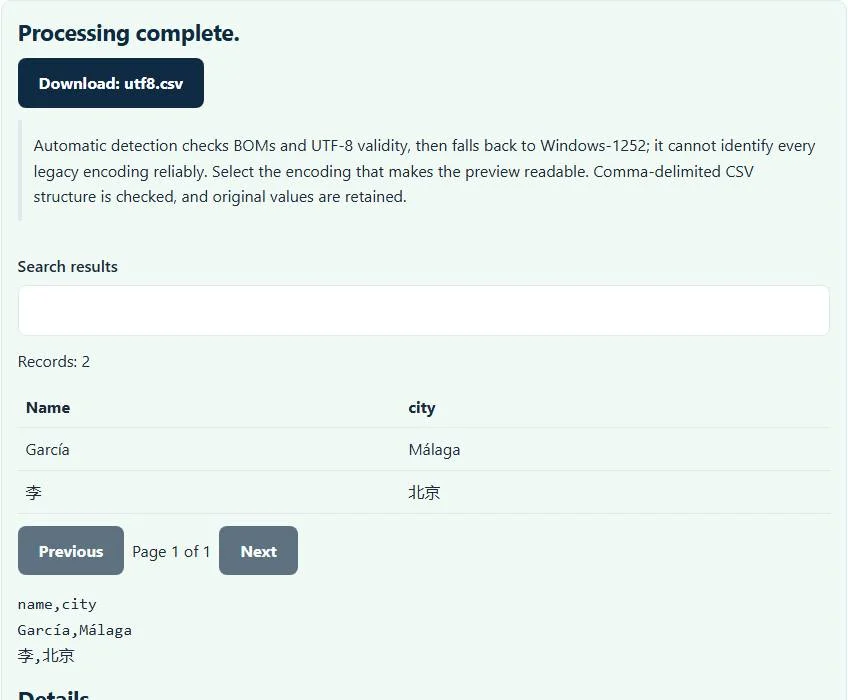
- Select Process files, inspect the preview and download
utf8.csv.
Try an example demonstrates multilingual names and cities. Before converting a real export, compare several accented values and at least one header with the source system so a plausible-looking preview does not hide a wrong decoding choice.
Source encoding and output encoding are separate decisions
The source setting tells the browser how to interpret the selected bytes. The output is always UTF-8; this interface does not export Windows-1252 or a user-selected legacy target encoding. Automatic decoding checks byte-order marks and UTF-8 validity, then falls back to Windows-1252 when appropriate.
That fallback is a heuristic, not a universal detector. A file from an unsupported character set may produce readable punctuation but wrong letters. Select the known source encoding rather than treating an automatic result as proof. If the original system can export UTF-8 directly, obtaining a fresh source export may be safer than guessing.
Example: keep Spanish and Chinese names readable
name,city
García,Málaga
李,北京
When those values are correctly decoded, the UTF-8 download retains both accented Spanish text and Chinese characters. A Windows-1252 file can represent many Western characters but cannot contain this complete Chinese example as ordinary Windows-1252 text. The example illustrates UTF-8 output, not evidence that every source encoding represents every language.
For a known Windows-1252 source containing Café, choose Windows-1252 and verify the preview before saving UTF-8. Do not repeatedly change settings on text already saved with replacement question marks: the original byte information may no longer exist in that damaged copy.
Should you include a UTF-8 BOM?
A UTF-8 byte-order mark is an optional three-byte prefix that can help some applications recognize the text encoding. It does not change the characters, delimiters or CSV field values. The checkbox enables or omits that prefix in the download.
Choose according to the receiving application’s documented import behavior. Some spreadsheet workflows use the marker as a helpful signal; some scripts or older importers can expose it as an unwanted prefix in the first header. If the target offers an explicit encoding selection, use that setting rather than relying only on automatic file opening. A BOM cannot resolve a wrong comma/semicolon delimiter.
What this conversion does not repair
The CSV encoding converter checks that the input can be read as the supported comma-delimited CSV structure. It does not fix every row-length problem, merge columns, change delimiter conventions or rewrite business values. It retains the decoded text rather than producing a newly normalized spreadsheet model.
It also does not neutralize spreadsheet formulas in source cells, validate URLs or restore permanently lost characters. Treat formulas and untrusted values appropriately in the receiving application. Garbled text caused by multiple earlier conversions may need a fresh source file, not merely a different output marker. Encoding, delimiter and spreadsheet display problems are related but distinct.
Use clean text before comparing or importing data
The CSV difference checker compares decoded field values exactly, so inconsistent encodings can create misleading differences. Normalize the original and revised exports using the correct source settings before a comparison, preserving stable identifiers and matching headers.
For transaction data, the CSV to QIF converter adds a separate bank-record mapping step. For calendar event rows, the CSV to ICS converter needs its own valid date and column settings. Making text UTF-8 does not establish those format-specific requirements or verify an application import.
Troubleshooting unexpected output
If the preview shows replacement characters, check the selected encoding and return to the unmodified source. If every value is in one column, verify the actual delimiter; this interface targets commas. If a program reports an unexpected first-header character, compare the behavior with the BOM checkbox off and consult that importer’s encoding settings.
Processing takes place in your browser. A large text export still uses browser memory, so respect the page’s file-size limit and test a smaller representative file if necessary. Keep the original bytes until the receiving application displays the output correctly, and use Clear files and results after working with sensitive exports.
Common CSV encoding converter errors and how to fix them
When the CSV encoding converter cannot use a file, it stops with one clear message instead of producing a half-finished download. These are the problems people run into most often, with the fix for each:
- The file is empty or has no usable records for this CSV encoding converter. The decoded text is empty, which usually means the file is binary data or a spreadsheet workbook (.xlsx) renamed to .csv.
- Row length differs from the header. A row has a different number of cells than the header.
- Characters still look wrong The source encoding guess was wrong. Choose the encoding explicitly, such as Windows-1252 or Shift_JIS, and convert again.
Privacy: the CSV encoding converter runs in your browser
CSV encoding converter processing happens with JavaScript in a background worker on this page. Your file is not uploaded to a FileFix server, and the results you download are created in your browser’s memory. Bank and payment files contain account numbers and amounts, so keeping them off third-party servers matters. When you finish on a shared computer, clear the selection or close the tab.
For the underlying format rules, see the RFC 4180 (CSV). The CSV encoding converter follows the subset described on this page rather than every optional feature in those documents.
Once the file is UTF-8, you can turn contacts into cards with the CSV to vCard converter, or go from API data to a sheet with the JSON to CSV converter.
Sources
Questions about this tool
Does the converter output every legacy encoding?
No. Supported source encodings are decoded to UTF-8 output. The optional BOM controls a UTF-8 prefix, not a different target character set.
Can automatic detection identify any CSV encoding?
No. It checks BOMs and UTF-8 validity, then uses a Windows-1252 fallback. Unsupported or ambiguous source encodings need separate investigation.
Can changing encoding recover characters already replaced by question marks?
Usually not from that damaged copy. Once the original characters were discarded, obtain an earlier unmodified export if possible.
Does pasting text preserve the original file encoding?
No. Clipboard text is already decoded. Choose the original file when you need to inspect its source bytes.
Does a UTF-8 BOM fix a semicolon-delimited spreadsheet?
No. Encoding and delimiter are separate properties. This converter checks comma-delimited CSV; a BOM does not change separators.
Review the supported formats and limitations before using an output file. File processing happens in your browser.