
Convert MT940 to CSV when your bank hands you a SWIFT statement file and you need the transactions in a spreadsheet. MT940 is the customer statement message banks have used for decades: each booking sits on a :61: statement line, and the narrative that explains it follows on a :86: line. This MT940 to CSV converter pairs those two lines, adds the account from the :25: tag and writes one clean row per transaction.
How to use the MT940 to CSV converter
- Choose a
.sta,.mt940or.txtstatement exported from online banking. - Leave Input encoding on
auto. If accented names look wrong in the preview, pickwindows-1252and process again. - Select Process files, or use Try an example to see a one-line fictional statement first.
- Check the preview, then download
mt940.csv.
What the :61: statement line contains
Bank format guides describe field 61 as 6!n[4!n]2a[1!a]15d1!a3!c16x[//16x]. In plain terms: a six-digit value date (YYMMDD), an optional four-digit entry date (MMDD), a debit/credit mark, an optional funds code, the amount with a decimal comma, a transaction type such as NTRF, and the account owner’s reference, sometimes followed by // and the bank’s own reference.
The debit/credit mark has four values: C for a credit, D for a debit, RC for a reversal of a credit, which takes money out, and RD for a reversal of a debit, which puts money back. The tool signs D and RC as negative and C and RD as positive, so a returned cheque does not look like a second payment. The optional funds code letter, the third character of the currency code, is skipped so the amount still parses.
Worked example: one card payment
:20:STMT
:25:123456
:61:2601050105D12,50NTRFNONREF
:86:Cafe
-
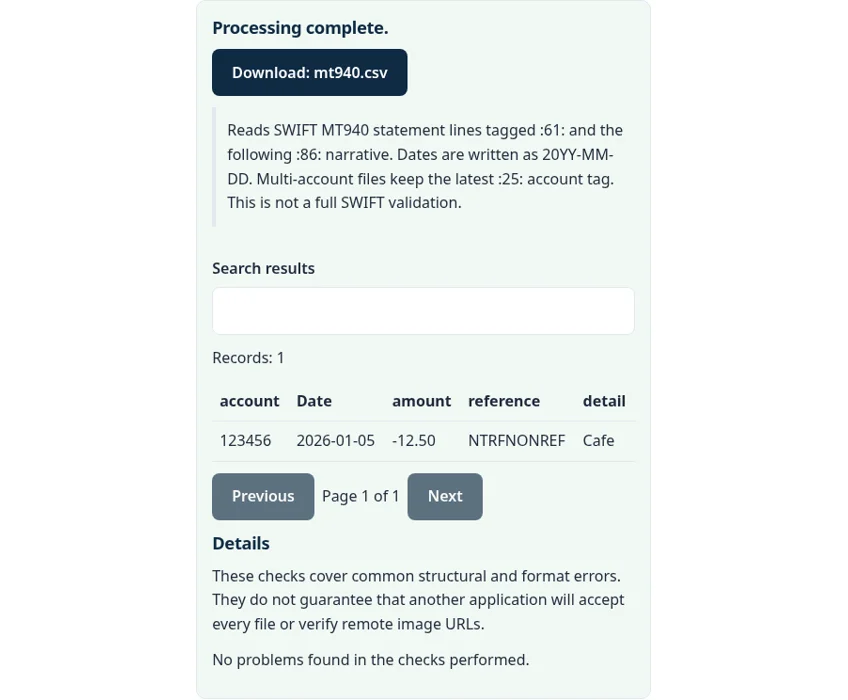
The value date 260105 becomes 2026-01-05, the D mark turns 12,50 into -12.50, the reference column gets NTRFNONREF and the detail column gets Cafe. The account column shows 123456 from the :25: line. Negative amounts stay plain numbers in the CSV, so a spreadsheet can total them straight away.
Dates, references and multi-line narratives
The two-digit year on the value date is written as 20YY, which suits current statements. Long :86: text that wraps onto extra lines is joined back into one detail cell. If your bank packs structured codes such as /EREF/ or ?20 into field 86, they stay in the detail text exactly as sent, so you can split them later with a spreadsheet formula.
A file with several accounts keeps the most recent :25: value for the lines that follow it. Balances in :60F:, :62F: and :64: are not turned into rows, because they are not transactions. Compare the CSV total with the statement’s opening and closing balance as a quick check.
Common MT940 to CSV errors
- No rows found. The file has no
:61:lines, or it is a PDF or HTML page saved with a.staname. Export the statement again in MT940 format. - Use a decimal amount with no currency symbol and at most two decimal places. An amount on a
:61:line has more than two decimals or extra characters. - Strange characters in names. Pick the source encoding by hand instead of
auto.
Privacy: your statement stays in your browser
The MT940 to CSV converter runs with JavaScript in a background worker on this page. We checked the tool code: the statement is read from your device into browser memory, nothing is sent to a FileFix or Calcenzo server, and the only network requests the tool makes are for its own static files. Your file stays in your browser. The download is built in memory too. Bank files carry account numbers and balances, so on a shared computer clear the selection or close the tab when you are done.
This MT940 to CSV tool reads the subset described here and is not a full SWIFT validator. For conversions in other formats, try the camt.053 to CSV converter, the BAI2 to CSV converter or the OFX to CSV converter.
Sources
The MT940 to CSV converter follows these specifications and format guides:
Questions about this tool
What do RC and RD mean in an MT940 file?
RC is a reversal of a credit, so money leaves the account, and RD is a reversal of a debit, so money comes back. The converter signs RC as negative and RD as positive.
Does it read the :86: narrative?
Yes. The :86: text after each :61: line goes into the detail column, and wrapped lines are joined into one cell.
Are opening and closing balances exported?
No. Only :61: transaction lines become rows. Use the :60F: and :62F: balances in the original file to check the CSV total.
Is my bank statement uploaded?
No. The file is read and converted in your browser, and the tool makes no upload request.
Which file extensions work?
Files ending in .sta, .mt940 or .txt that contain MT940 text. A PDF statement renamed to .sta will not work.
Review the supported formats and limitations before using an output file. File processing happens in your browser.