
Convert FIT to CSV when you want the second-by-second data from a run, ride or swim in a spreadsheet. FIT is the compact binary format Garmin defines in its FIT SDK, and most sports watches and bike computers record in it. This FIT to CSV converter reads the record messages in the file and writes one row per record.
How to use the FIT to CSV converter
- Choose a
.fitactivity file, for example one exported from Garmin Connect or copied from your device. - Select Process files, or press Try an example to read a two-record fictional activity.
- Check the preview, which shows up to 5,000 rows.
- Download
activity.csv, which holds every record.
Columns in the CSV
| Column | Meaning |
|---|---|
| timestamp | UTC time in ISO 8601 |
| latitude, longitude | Decimal degrees |
| altitude_m | Enhanced altitude if present, otherwise altitude, in metres |
| heart_rate | Beats per minute |
| cadence | Cadence as recorded by the device |
| speed_mps | Enhanced speed or speed, metres per second |
| distance_m | Running distance, metres |
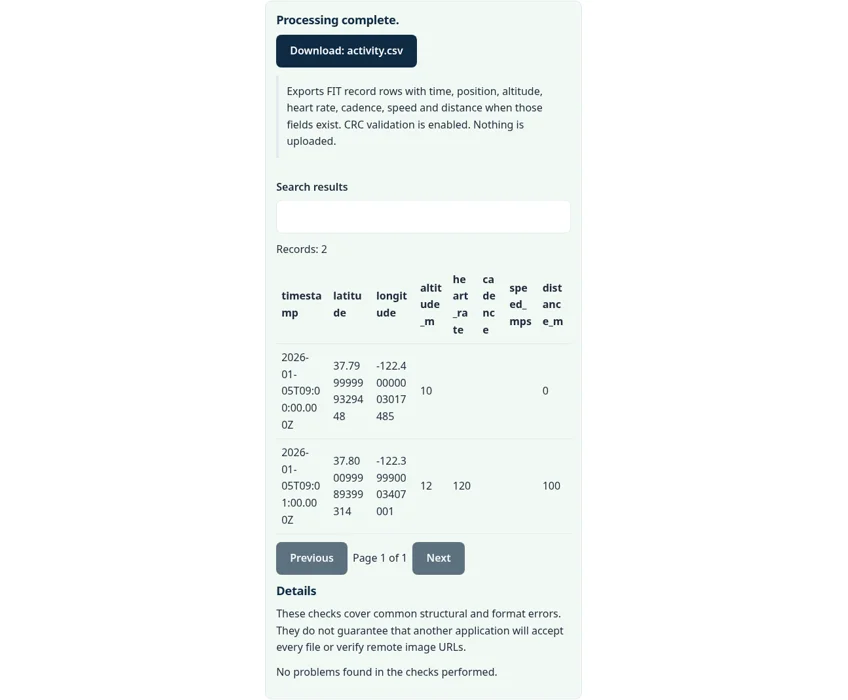
A cell is empty when the device did not record that field. FIT stores position as 32-bit whole numbers called semicircles, and Garmin gives the conversion as degrees = semicircles × 180 / 231. The parser applies it, which is why you may see values like 37.79999999329448 instead of a round 37.8. Round the column in your spreadsheet if you prefer.
Worked example: two records
The sample file holds two records one minute apart. The FIT to CSV output starts at 2026-01-05T09:00:00.000Z, near 37.8, -122.4, at 10 m and distance 0. The second row, at 09:01, is at 12 m with a heart rate of 120 and a distance of 100 m. Cadence and speed are blank because the sample did not record them.
Checksums and what is skipped
Garmin’s FIT SDK checks a CRC checksum in the file header and at the end of the file to catch damage. The FIT to CSV converter keeps CRC checks on, so a file cut off during a sync is rejected instead of giving silent gaps. Laps, sessions, device info and developer fields are not exported, only record messages. Power, temperature and other fields not in the table above are also left out.
Common FIT to CSV errors
- The FIT file failed parsing or checksum validation. The file is damaged or not a FIT activity. Export it again from your device or app.
- No rows. The file is a FIT settings, course or workout file with no record messages.
Privacy: your activity stays in your browser
Tips for analysing the result
Open the result in a spreadsheet and sort by time to confirm the rows run in order. Blank cells are normal where a sensor was not paired or dropped out for a moment. Pauses show up as a gap in the timestamps rather than as rows with zero speed. If you compare two activities, convert both the same way so the columns line up. For long rides or runs, filter to every fifth or tenth row before charting, which keeps the chart readable without losing the overall shape.
The FIT to CSV converter runs with JavaScript in a background worker on this page. The file is read into browser memory and is not uploaded, and the result you download is built locally. If the file holds anything private, such as home locations or personal records, clear the page on a shared computer when you are done.
Activity files often show where you live and train, so share the CSV with care. To map the route instead, use the FIT to GPX converter and then the GPX to KML converter.
Sources
The FIT to CSV converter follows these specifications and format guides:
- Garmin FIT SDK: FIT protocol
- Garmin FIT SDK: overview
- Garmin FIT Python SDK: CRC integrity check
- Garmin FIT SDK forum: semicircles to degrees
Questions about this tool
What is a FIT file?
A compact binary activity format defined in the Garmin FIT SDK and used by most sports watches and bike computers.
Which fields are exported?
Time, latitude, longitude, altitude, heart rate, cadence, speed and distance from each record message, when the device recorded them.
Why do coordinates have so many decimals?
FIT stores position in semicircles. Converting to degrees gives long decimals; round the column in your spreadsheet.
Are laps and power exported?
No. Only the listed record fields are exported. Laps, sessions and other fields are left out.
Is my activity uploaded?
No. The file is read in your browser.
Review the supported formats and limitations before using an output file. File processing happens in your browser.