
Unprotect Excel sheet and workbook protection without the password: choose the .xlsx file in the tool below and download unprotected.xlsx. It removes sheet and workbook protection and leaves cells, formulas and formatting unchanged. It cannot remove a password that is needed to open the file, because that encrypts the workbook.
Unprotect Excel sheet tool at a glance
| Input | Excel workbook (.xlsx) |
|---|---|
| Output | unprotected.xlsx, same content without protection |
| Removes | Sheet protection (sheetProtection), workbook structure protection (workbookProtection) |
| Does not remove | Password to open (encryption), VBA project passwords |
| File limit | 25 MB per file |
| Privacy | Runs in your browser; the workbook is not uploaded |
How to unprotect Excel sheet protection in 4 steps
- Save as .xlsx if needed. Older .xls files must be saved as .xlsx in Excel, LibreOffice or Google Sheets first.
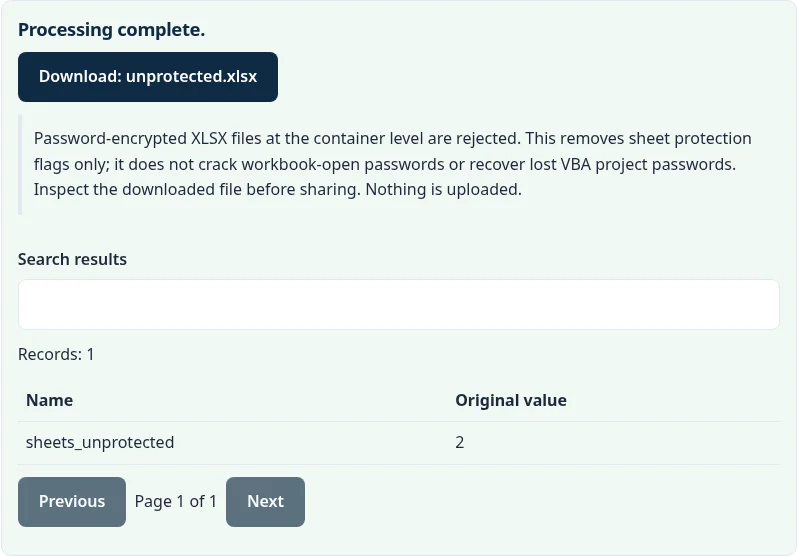
- Choose the workbook. Select the .xlsx file. The result reports how many sheets had protection removed.
- Download unprotected.xlsx. Click Download: unprotected.xlsx and open it in Excel.
- Edit, then protect again if needed. Locked cells are editable again. To protect it with a password you will remember, use Review > Protect Sheet.
How do I unprotect an Excel sheet if I forgot the password?
Run the .xlsx through this tool. Sheet protection is an editing lock stored inside the file, so it can be removed without knowing the password.
An .xlsx file is a ZIP of XML files. Protection is a <sheetProtection> element in each protected sheet’s XML and a <workbookProtection> element in xl/workbook.xml. The tool removes those elements and rezips the workbook. Nothing else is changed.
Can I remove the password that opens an Excel file?
No. A password to open (File > Info > Protect Workbook > Encrypt with Password) encrypts the whole file, and the data cannot be read without it.
The tool rejects encrypted workbooks rather than trying to guess passwords. If it is your file, check old notes or password managers, or ask whoever created it.
Does unprotecting a sheet change my data or formulas?
No. Only the protection settings are removed. Values, formulas, formatting, charts and sheet names are copied over as they were.
Example: a workbook with three protected sheets, one named “Budget & Plan” with =SUM(B2:B3), comes back with all three sheets unprotected and the same formula and values.
How do I unprotect an Excel workbook structure?
Workbook structure protection, which stops you adding, renaming or deleting sheets, is removed in the same step as sheet protection.
Why does Excel say the cell is on a protected sheet?
Excel shows that message when you try to type in a locked cell on a protected sheet. By default every cell is locked, and the lock only takes effect once someone turns on Review > Protect Sheet.
If you know the password, Review > Unprotect Sheet is the quickest fix. If nobody remembers it, unprotect Excel sheet protection with this tool instead. Microsoft notes that sheet and workbook protection is not a security feature: it stops accidental edits, not someone who wants to read the data. For files that must stay private, use a password to open, which encrypts the file (Microsoft: Protect a workbook).
How does this unprotect Excel sheet tool compare with other options?
The main differences are cost, whether your file leaves your device, and what you get back. This table describes each option in general terms.
| Option | Cost | File uploaded? | Output | Main limitation |
|---|---|---|---|---|
| This tool | Free | No, runs in your browser | Sheet + workbook protection | Cannot remove open passwords |
| Excel: Review > Unprotect Sheet | Free | No | One sheet at a time | Needs the password |
| Rename to .zip and edit the XML by hand | Free | No | Any protection element | Fiddly; easy to break the file |
| VBA macros found in forums | Free | No | Older protection only | Needs macros enabled; varies by Excel version |
Is this unprotect Excel sheet tool private?
Yes. The file is processed by JavaScript in a background worker in your browser tab and is not uploaded to a Calcenzo or FileFix server. Downloads are created in your browser’s memory. On a shared computer, use Clear files and results or close the tab when you finish.
Working with exported spreadsheet data? See also the CSV encoding converter, CSV diff and JSON to CSV converter.
Sources
Questions about this tool
Can I unprotect an Excel sheet if I forgot the password?
Yes for sheet and workbook protection, because that password only switches on an editing lock inside the file. The tool removes the lock and leaves your data alone.
Can it remove the password that opens the file?
No. A password to open encrypts the workbook, and the data cannot be read without it. The tool rejects encrypted files.
Does unprotecting change my formulas or data?
No. Only the protection settings are removed. Cells, formulas, formatting, charts and sheet names are copied across unchanged.
Does it work with .xls or .xlsm files?
It accepts .xlsx. Save an older .xls as .xlsx first. Keep a copy of the original if the file contains macros.
Is it legal to unprotect an Excel sheet?
Removing protection from your own files, or files you are allowed to edit, is normal. Do not use it to get around restrictions on someone else's work.
Review the supported formats and limitations before using an output file. File processing happens in your browser.