
Convert OFX to CSV to inspect a bank statement in a spreadsheet without copying transactions one at a time. This OFX to CSV converter reads supported OFX and QFX bank transaction blocks, including older SGML-style statements, and exports account labels, transaction IDs, dates, types, amounts, payees and memos. The preview helps you check the extracted rows before saving. It is designed for ordinary transactions from one account, rather than investment holdings or a complete reconstruction of every statement field.
How to use the OFX to CSV converter
- Choose an
.ofxor.qfxfile. You can also paste a supported text statement. - Leave Input encoding on
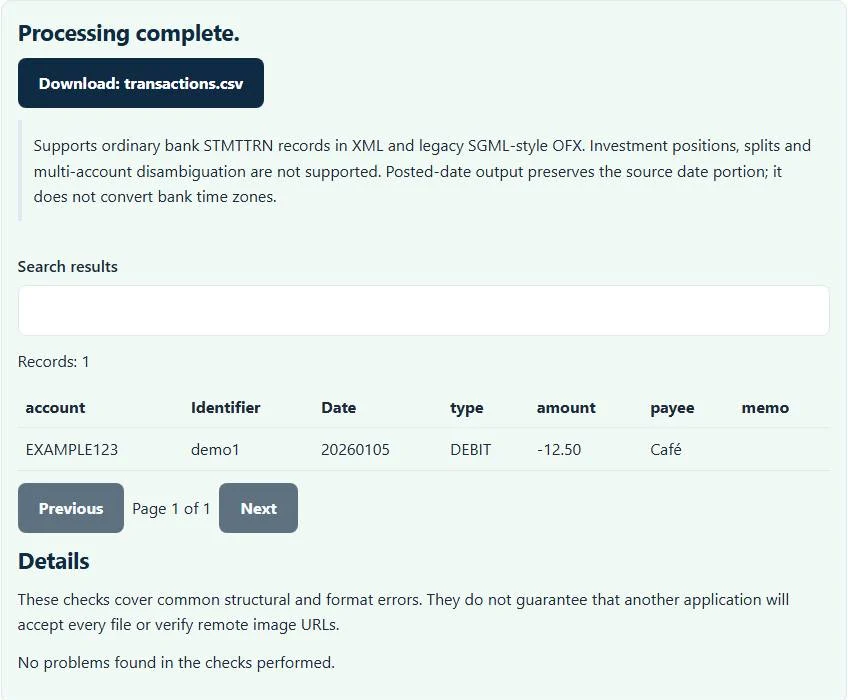
autoinitially. If accents look wrong, select the known source encoding and process again. - Select Process files. The Try an example button demonstrates one fictional bank debit.
- Review the transaction rows and download
transactions.csv.
No bank login is requested, and the selected bytes are parsed locally. Keep the unmodified OFX or QFX as your source record, especially when the statement contains information beyond the rows shown here.
What is extracted from OFX and QFX?
The supported records are ordinary STMTTRN transaction blocks. Their output columns are account, id, date, type, amount, payee and memo. The transaction identifier comes from FITID; preserving it can help you investigate repeated exports, although this OFX to CSV converter does not deduplicate transactions.
Both XML-style scalar closing tags and the supported legacy SGML-style unclosed scalar tags are handled. QFX is accepted when its statement exposes compatible bank transaction blocks. Financial-institution branding and application-specific connection details are not turned into spreadsheet columns, and converting the file does not authorize any new connection to a bank.
Worked example: extracting one posted debit
A simplified statement transaction contains:
<STMTTRN>
<TRNTYPE>DEBIT</TRNTYPE>
<DTPOSTED>20260105</DTPOSTED>
<TRNAMT>-12.50</TRNAMT>
<FITID>demo1</FITID>
<NAME>Café</NAME>
</STMTTRN>
Inside the complete example statement, that block becomes a row dated 20260105 with amount -12.50, ID demo1 and payee Café. A statement account ID, when present, supplies the account label. The excerpt alone is illustrative; processing requires the supported complete OFX structure.
Compare the preview with the bank’s statement before using the CSV for reporting. A negative amount remains negative, and text descriptions remain text rather than a financial classification supplied by this page.
Posted dates, currency and amount handling
The exported date preserves the first eight digits of the source posted-date value. It does not translate bank timestamps into another time zone. If your spreadsheet expects ISO dates, transform YYYYMMDD deliberately after import rather than assuming the file already contains localized dates.
Supported amounts must be signed decimal numbers with at most two fractional digits. Currency symbols, scientific notation and unsupported precision are rejected. The conversion does not calculate foreign-exchange values or infer a currency from the payee. Review any currency context in the original statement separately, because this CSV subset is a transaction extraction rather than a fully typed accounting model.
Why some statements are rejected
Multiple distinct account identifiers are rejected so that transactions cannot accidentally receive the first account’s label. Separate the accounts at the export source, then process one supported statement at a time. Investment positions, security trades, transaction splits and arbitrary OFX message groups are outside the supported profile.
A damaged download may have an incomplete transaction block or a missing closing OFX boundary. Download it again from the source instead of changing its extension. If the file is actually a PDF statement, renaming it .ofx does not create the required bank exchange data. This OFX to CSV converter does not extract transactions from scanned statements.
Review and reuse the spreadsheet rows
Import the CSV as data rather than allowing your spreadsheet to guess identifiers and dates. Treat account IDs and transaction IDs as text when leading zeroes matter. CSV downloads protect formula-looking text for safer spreadsheet opening, but they cannot decide which transactions belong in a tax or accounting category.
Use the CSV difference checker when comparing two prepared exports with matching headers and a unique ID. If an accepted destination needs a Bank-profile interchange file instead, the CSV to QIF converter offers explicit column mapping; verify the destination’s supported account type before importing it.
Fix text decoding and protect statement information
Automatic decoding is a starting point. Older exports may need Windows-1252; some files use UTF-16. Compare several accented payees in the preview and choose the source encoding that displays them correctly. The CSV encoding converter can help normalize other CSV files from the same workflow.
The plugin does not upload your selected statement or log its contents. Downloads still contain sensitive account and payment information, and a shared browser session may retain a visible preview until cleared. Save only the files you need, verify a handful of rows against the source, and clear the page when finished.
Common OFX to CSV converter errors and how to fix them
When the OFX to CSV converter cannot use a file, it stops with one clear message instead of producing a half-finished download. These are the problems people run into most often, with the fix for each:
- No supported bank transactions were found in this OFX/QFX file. The file has no STMTTRN records, contains several accounts, or is not OFX (for example a web page saved from online banking).
- Use a valid date in the selected format, with an end after its start. A DTPOSTED value does not begin with an eight-digit date.
- Investment statements Positions, splits and investment transactions are outside the supported bank profile.
Privacy: the OFX to CSV converter runs in your browser
OFX to CSV converter processing happens with JavaScript in a background worker on this page. Your file is not uploaded to a FileFix server, and the results you download are created in your browser’s memory. Bank and payment files contain account numbers and amounts, so keeping them off third-party servers matters. When you finish on a shared computer, clear the selection or close the tab.
For the underlying format rules, see the Financial Data Exchange OFX specifications. The OFX to CSV converter follows the subset described on this page rather than every optional feature in those documents.
Have a QuickBooks download instead? Use the QBO to CSV converter. To go the other way, the CSV to OFX converter builds a statement from a spreadsheet, and the MT940 to CSV converter reads SWIFT statements.
Sources
The OFX to CSV follows these specifications and format guides:
Questions about this tool
Can this converter read QFX files?
Yes, when a QFX file contains supported ordinary bank STMTTRN transaction blocks. Application-specific connection information is not exported.
Does it support older SGML OFX files?
Yes. Supported bank records can use legacy unclosed scalar tags or XML-style tags. Arbitrary OFX message groups are not covered.
Why is a multi-account file rejected?
The supported profile is one account. Rejecting distinct account identifiers avoids labeling another account’s transactions with the wrong ID.
Are exported dates converted to my local time zone?
No. The date column preserves the source posted-date portion as YYYYMMDD; it does not convert bank time zones.
Can it export investment holdings or trade history?
No. Investment positions and specialized transaction messages are outside this ordinary bank-transaction subset.
Review the supported formats and limitations before using an output file. File processing happens in your browser.